retiming
Retiming Runs
General usage
Choose a category from the drop-down menu. For categories with multiple start or end points (e.g. All Moons NPG), all possible options will be shown. In some cases, the screenshots won’t exactly match what you see during a run. For example, any multimoon ending will always display the Darker Side Multimoon, even if you’ve selected a different category which ends on a multimoon. Since the timing isn’t affected, capturing every possible variant would only add unnecessary work without any real benefit. Plus, routes can evolve over time — an optimal start or end point today might not remain so in the future. This caveat mostly applies to CEs.
All images were captured at 60 fps while the game was running on a Switch 1.
Adjusting the frame rate
This section is still work in progress.
On the Switch 1, SMO runs natively at 60fps. For this reason, accurately retiming footage at 60fps is the easiest, since ideally every frame the game renders is also captured.
However, many recording devices—such as capture cards, cameras, or even the built-in Share function on the Switch used for Twitter—only support 30fps. Because of this, and especially due to the influence of the BTT community, adjusting the frame rate to 60fps has become common practice for accurately timing video clips. To support this, this application includes—whenever possible—at least two adjacent frames for each reference frame, making it easier to identify the correct frame in 30fps recordings.
For frame rates that deviate from 30 or 60fps, such adjustments should be avoided. Not only does the process become more difficult, but it also no longer accurately reflects reality. Due to loading times and lag, the game and the recording device cannot stay in sync, making it impossible to say with certainty whether the reference frame was truly reached at the calculated time—even if you’re able to identify which game-rendered frames are missing in the recording.
Be aware of the difference between the capture card’s framerate and the recording’s framerate. Some runners stream or record at 60 fps, but their capture cards only support 30 fps. In those recordings, most frames will simply be duplicated.
Retiming Runs
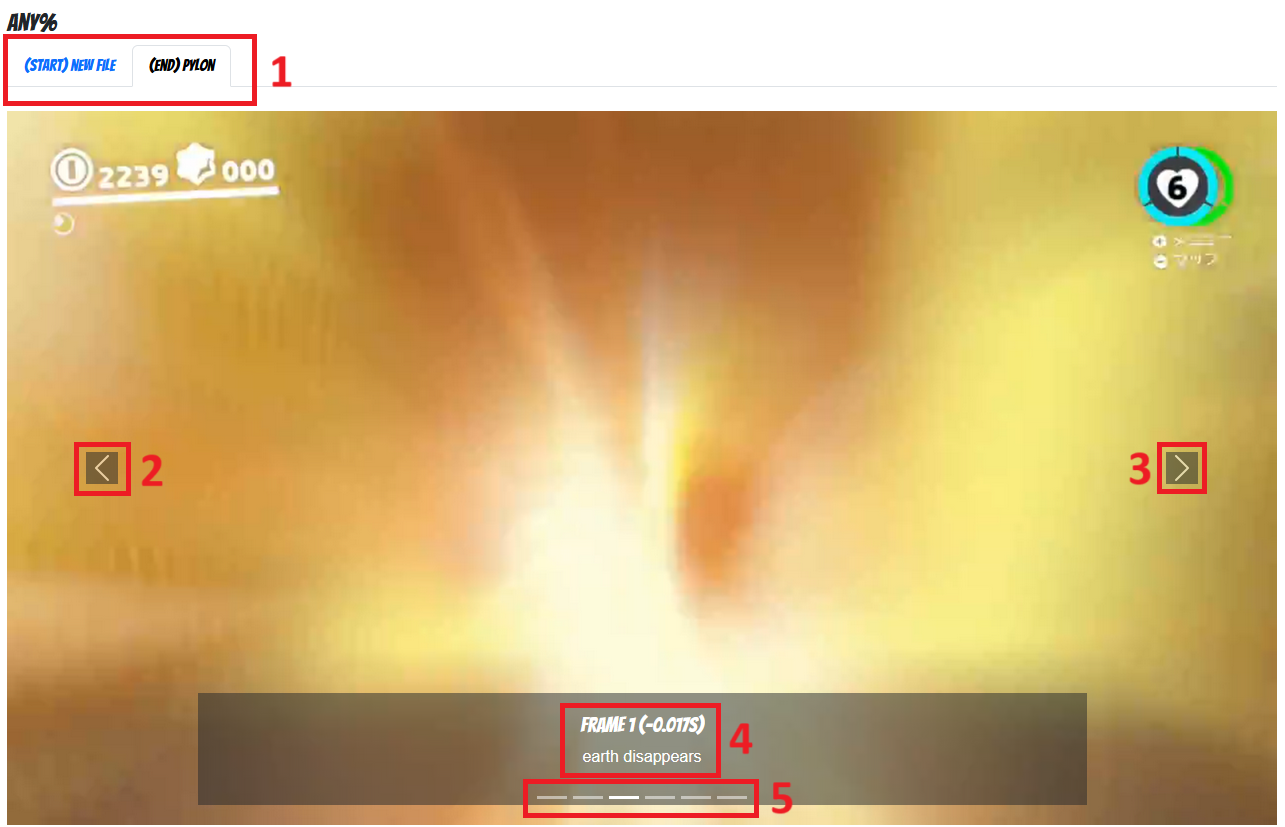
- 1 select the reference point
- 2/3 navigate to the previous or next frame – Note: This may not move exactly one frame forward or backward. Always check the frame number to be sure.
- 4 Below each frame, you'll find its number, a time adjustment value, and a brief description (hidden on small screens) of what occurs in that frame. Frame 0 is the reference frame. The time adjustment indicates how much should be added to (or subtracted from) the total time if that frame is used instead. For example, if a frame is one 60fps frame after the ending frame as shown, you would subtract 0.017 seconds.
- 5 these indicators show your position in the sequence and can also be used for navigation
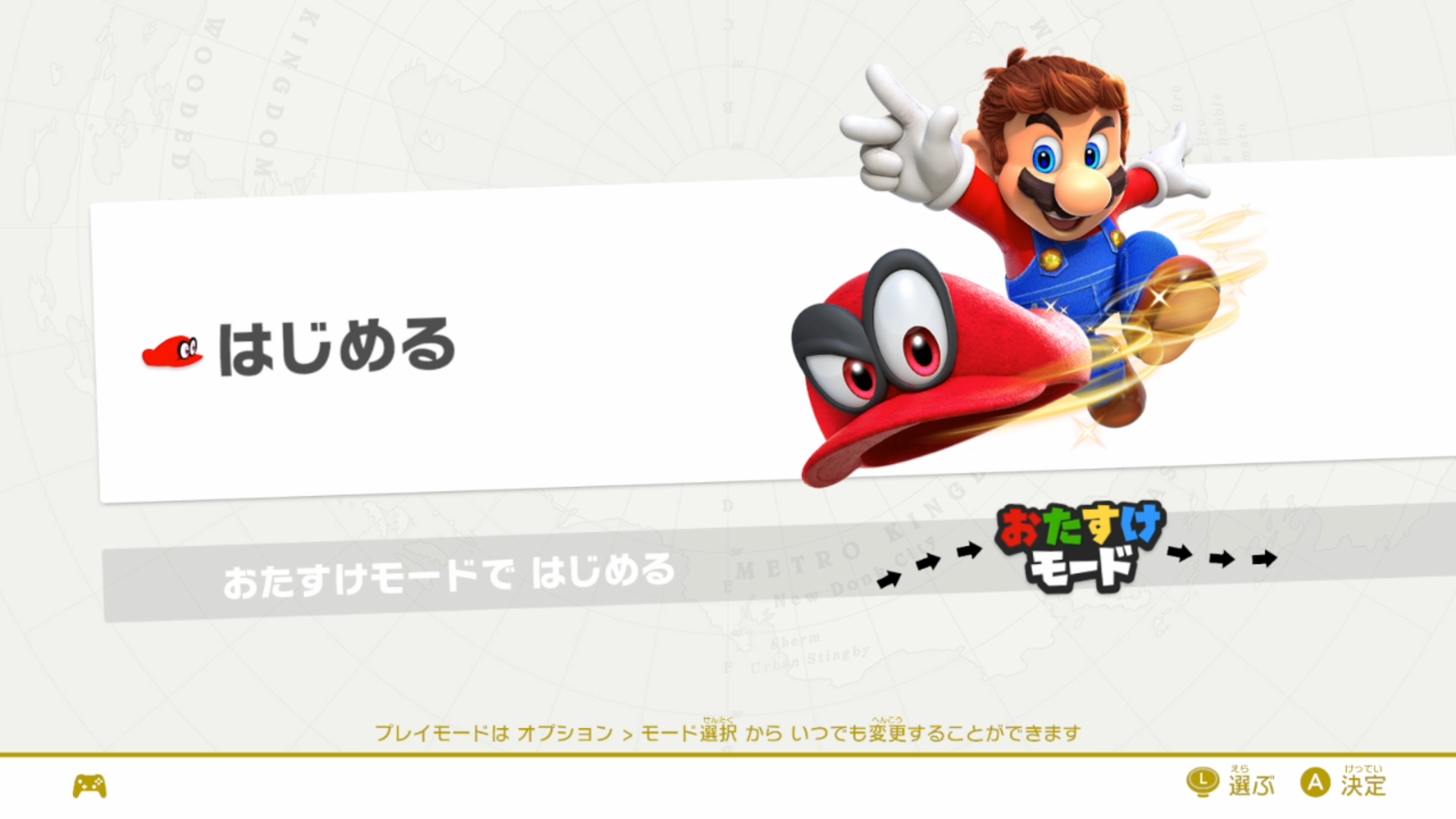
Frame 0 (0s)
text hasn't moved yet
Frame 1 (0.017s)
text moves down
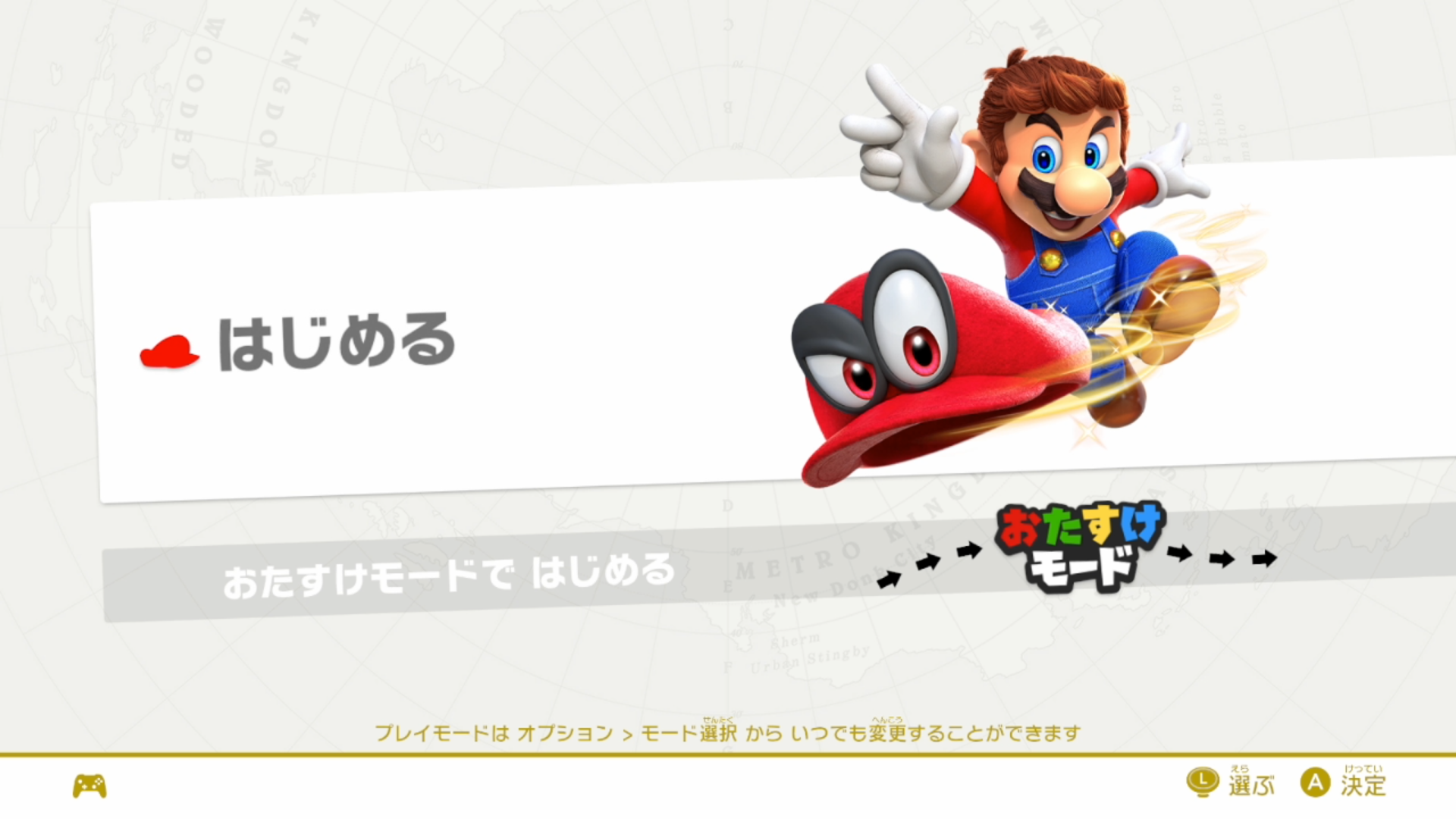
Frame 2 (0.033s)
text moves above initial position, loses opacity
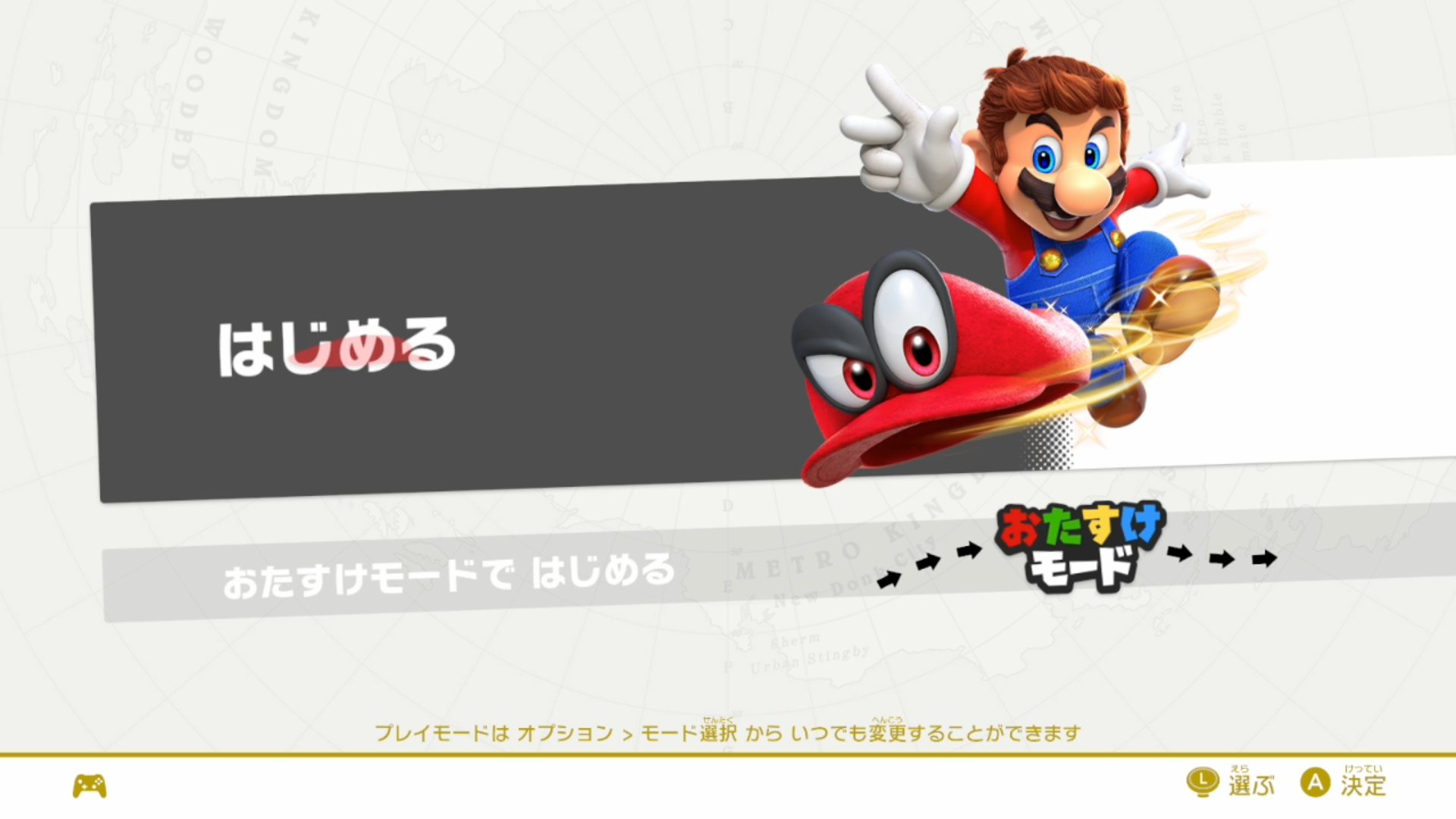
Frame 19 (0.317s)
tile is grayed out up to Mario's midpoint
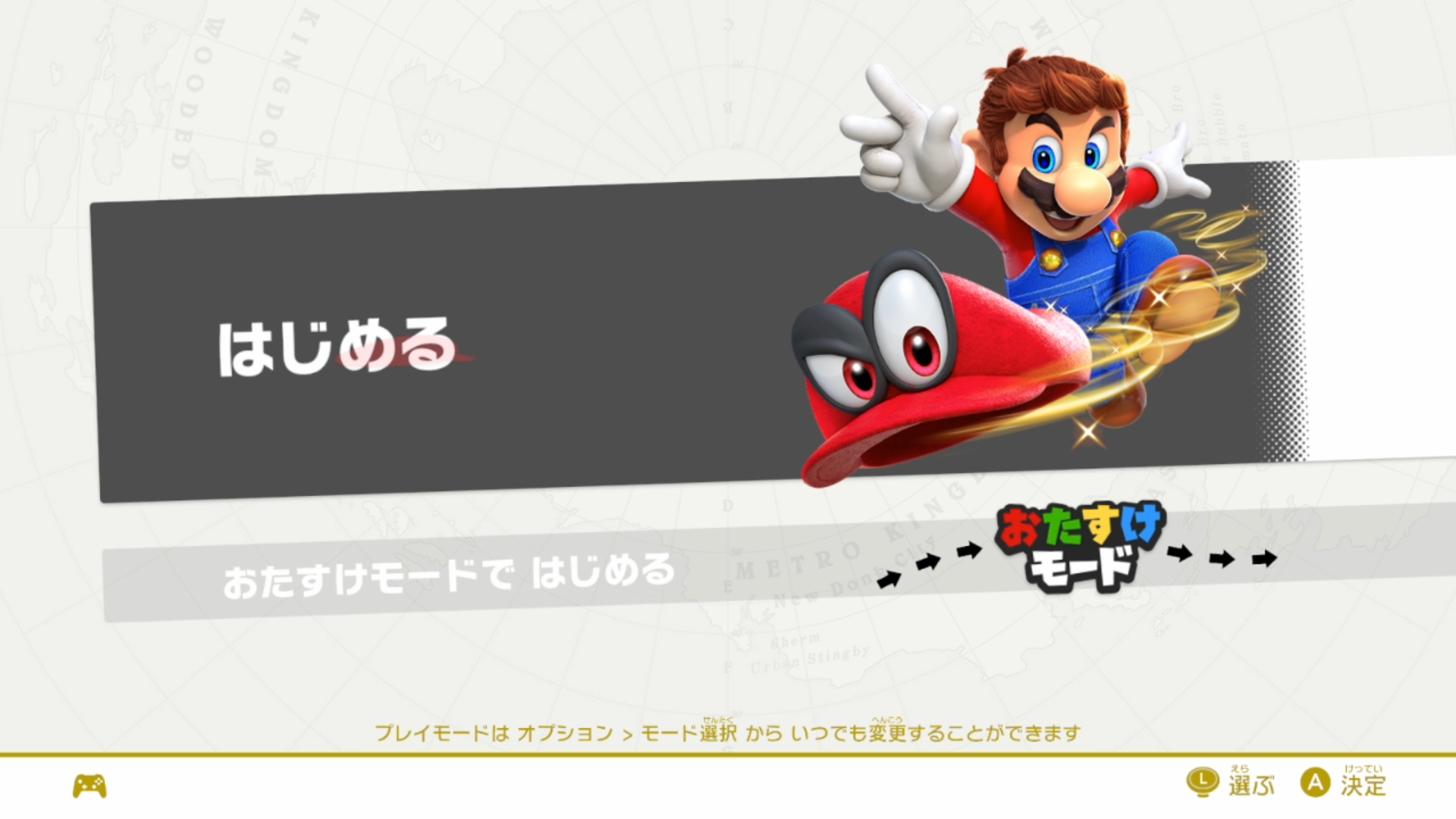
Frame 20 (0.333s)
tile is almost completely grayed out
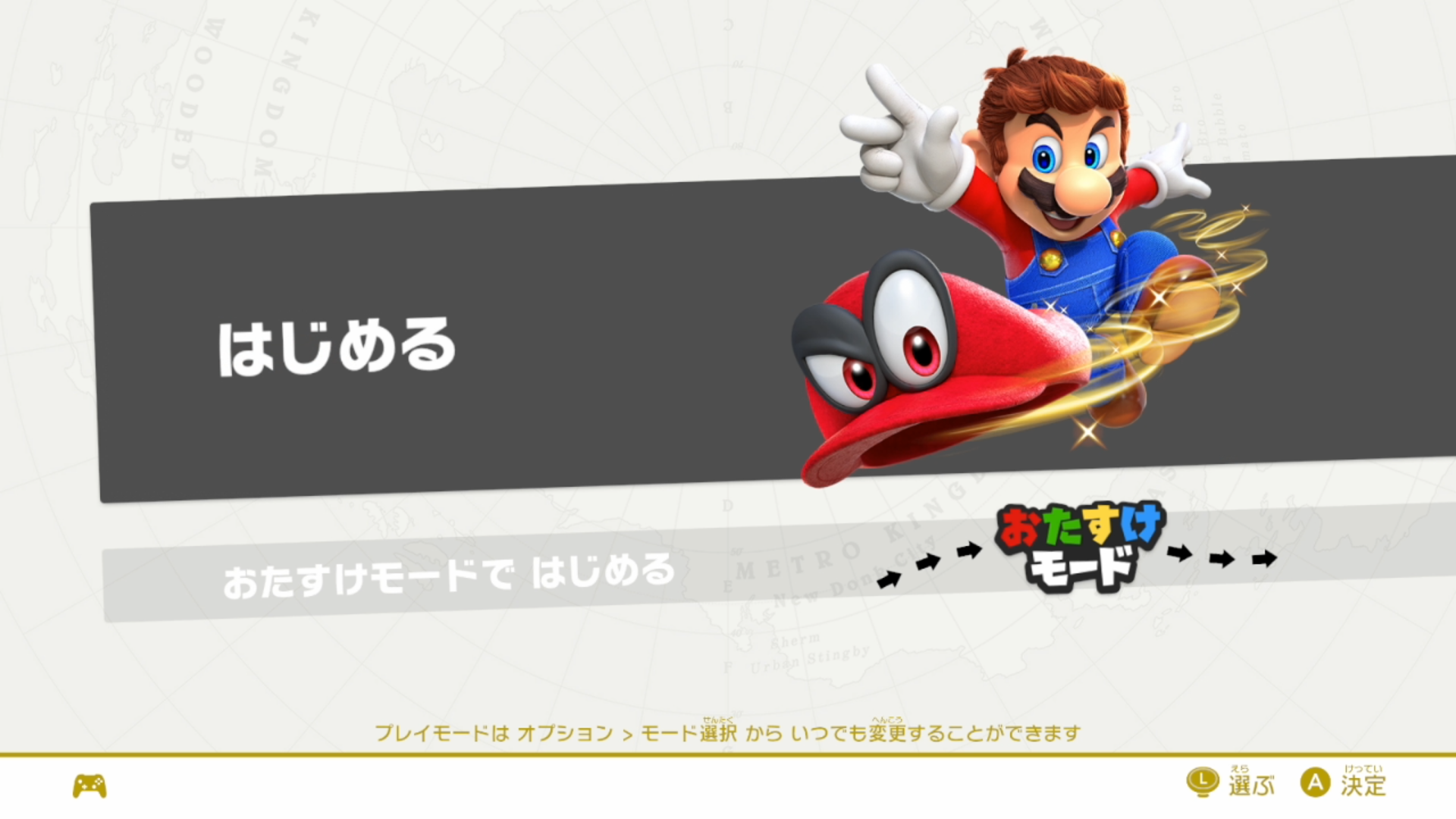
Frame 21 (0.350s)
tile is completely grayed out
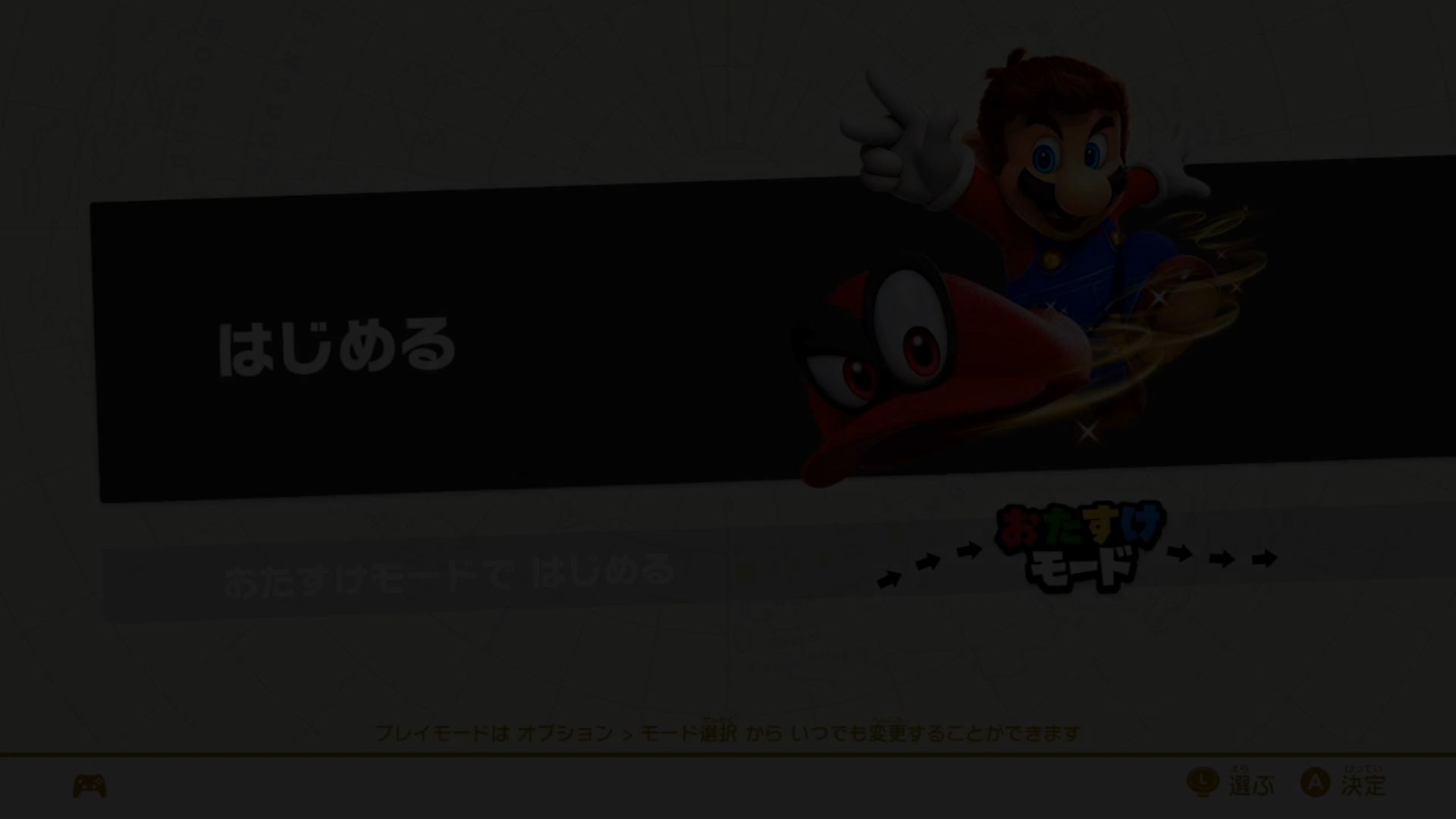
Frame 191 (3.183s)
screen is already quite dark
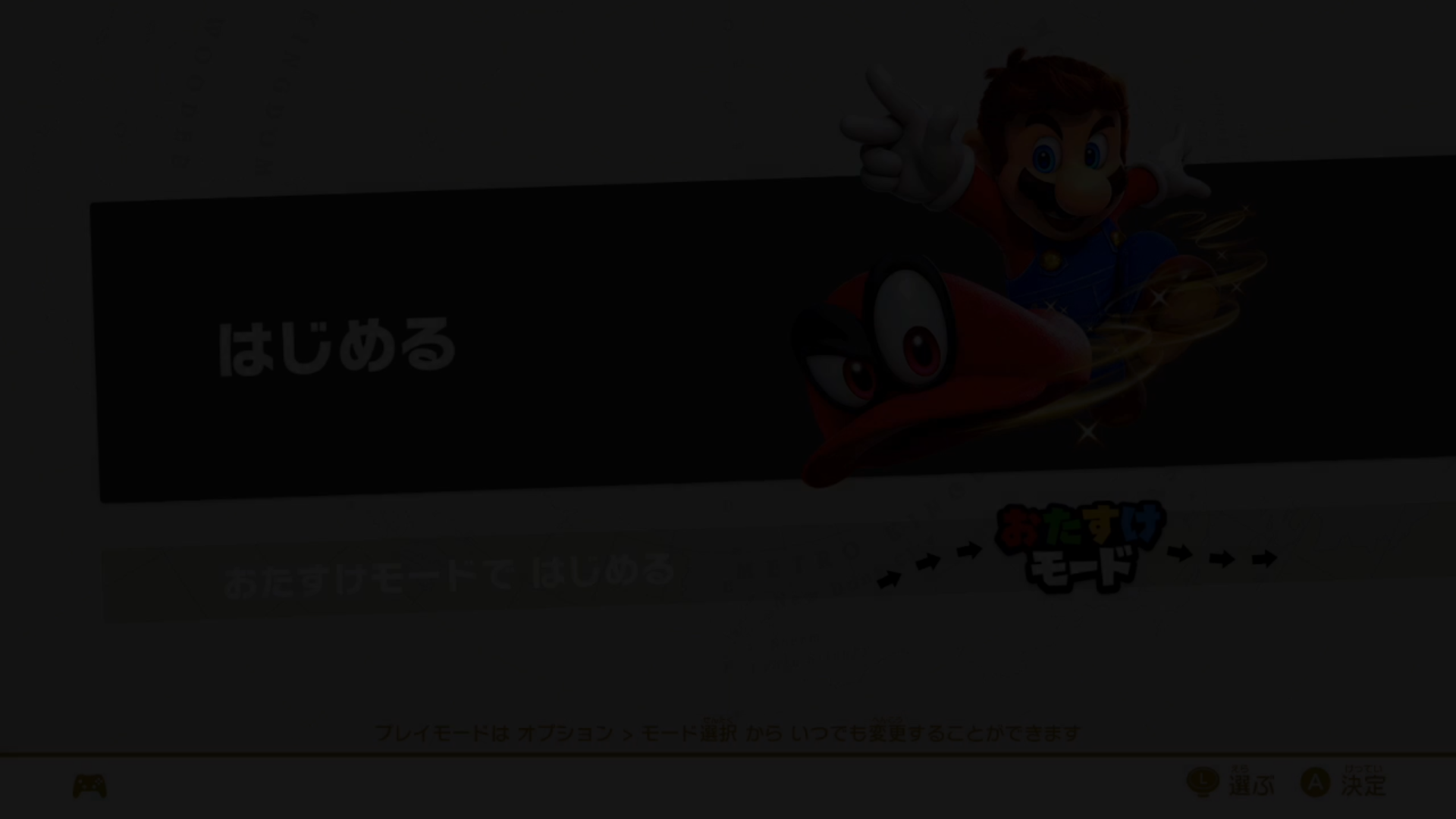
Frame 192 (3.200s)
screen is now even darker

Frame 193 (3.217s)
screen is completely black
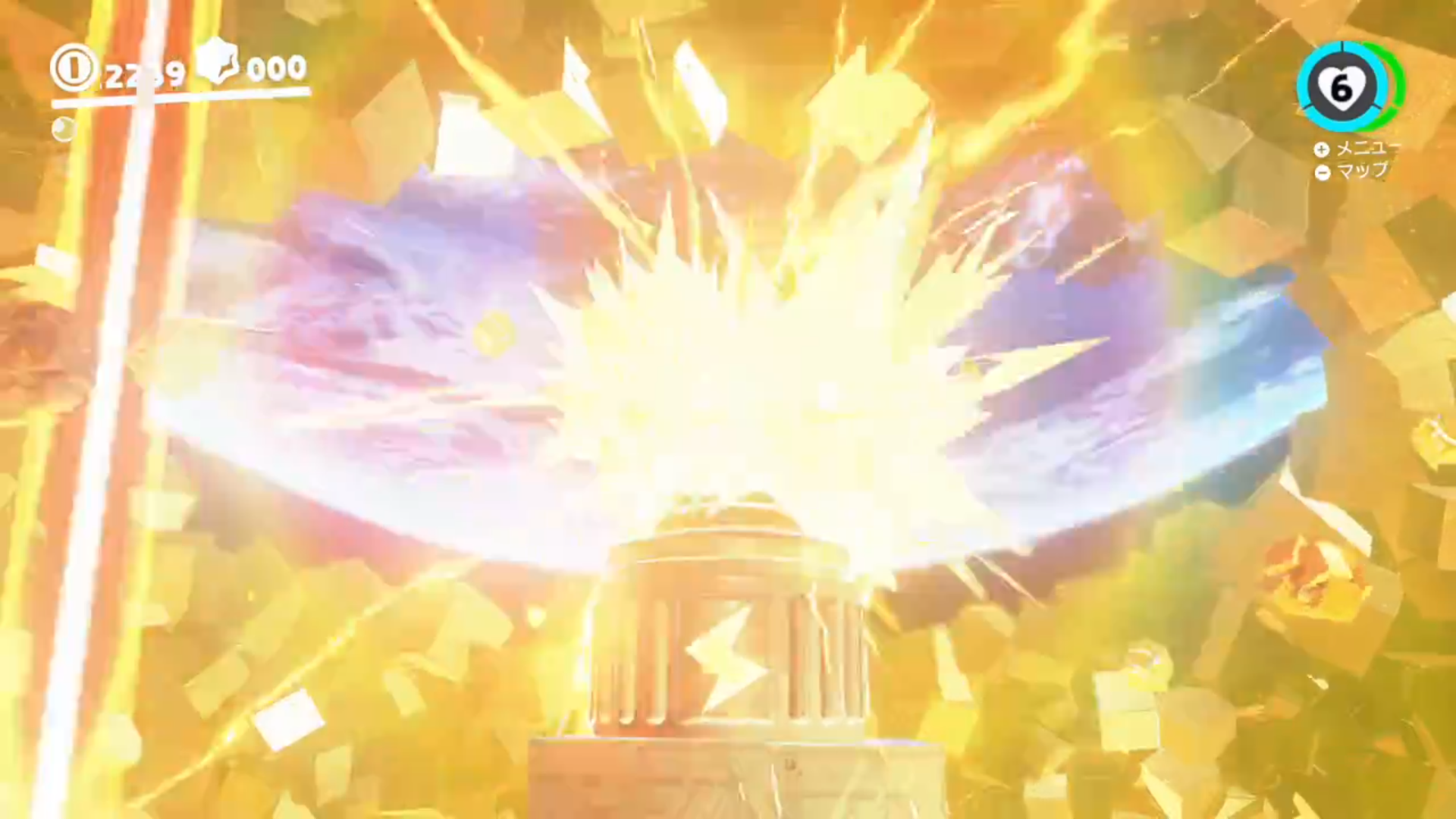
Frame -1 (0.017s)
screen not blurry yet

Frame 0 (0s)
screen goes blurry

Frame 1 (-0.017s)
earth disappears

Frame 473 (-7.883s)
screen is already quite dark

Frame 474 (-7.900s)
screen is now even darker

Frame 475 (-7.917s)
screen is completely black